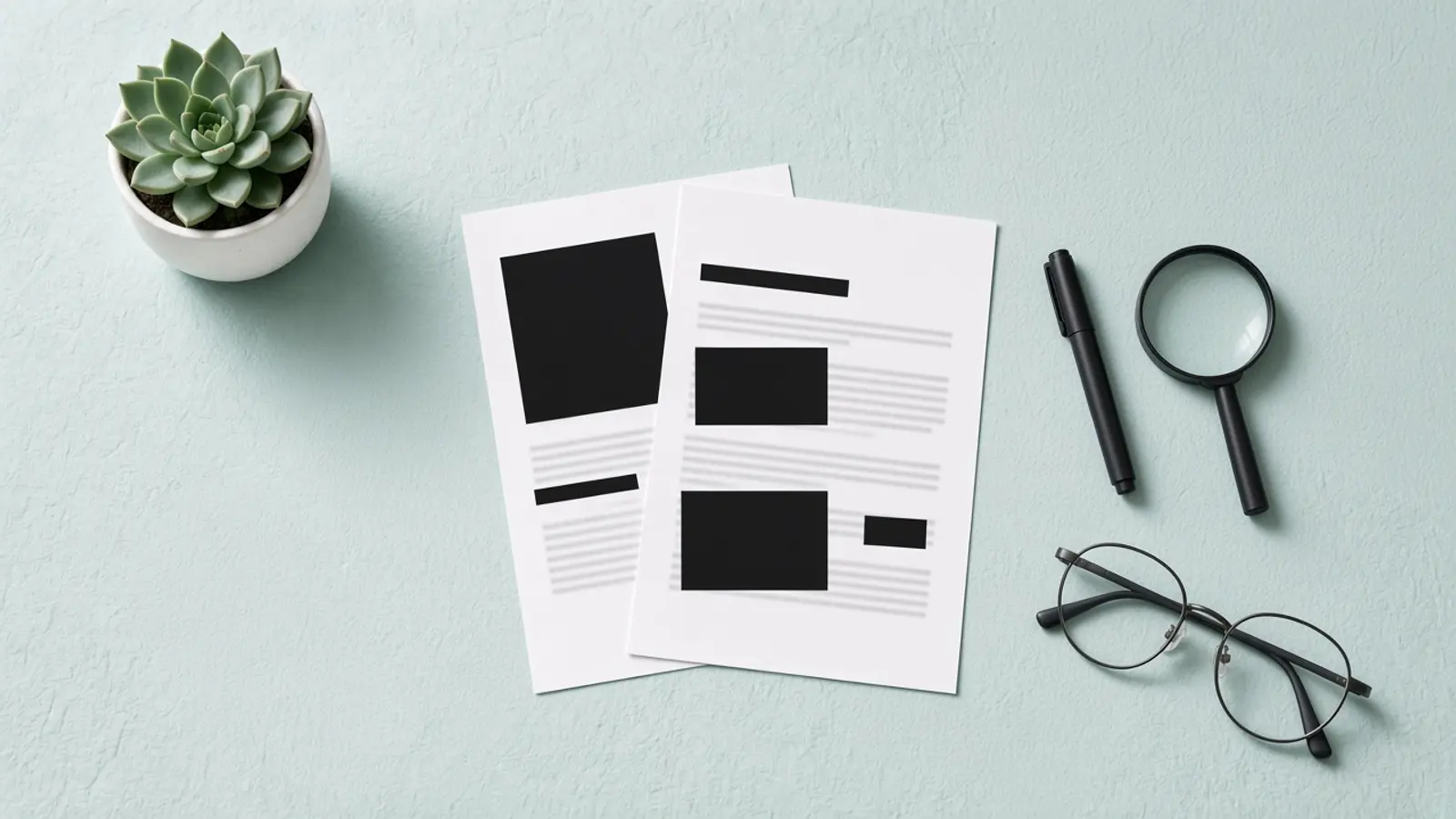
Redacted text is information removed or obscured from a document before it is shared, usually to protect sensitive details while leaving the rest readable. Redaction can apply to words, numbers, images, or entire sections, not just the familiar black bars in government reports. Understanding the difference between hiding information visually and actually removing it helps you read redacted documents and prepare safer copies of your own.
What does redacted mean?
Redacted means that information has been removed or obscured before publication or disclosure. In everyday use, the meaning of redacted centers on withholding sensitive material while sharing what remains. A redacted document might show a black box where a name appeared, a blanked-out account number, or a label such as “[REDACTED].”
The related terms describe different parts of the same process:
- Redact: The action of removing or obscuring information.
- Redacted: The condition of information or a document after that action.
- Redaction: The process itself, or an individual removal within a document.
- Redacted text: The words, characters, or passages withheld from view.
For a simple fictional example, imagine a receipt that says, “Customer: Jordan Ellis; order: replacement keyboard.” A shared copy might read, “Customer: [REDACTED]; order: replacement keyboard.” The purchase remains understandable without disclosing the customer's name.
That example captures the practical redacted definition: share the useful information without sharing every detail. For digital files, however, the method matters. A rectangle placed over text is not necessarily the same as removing the underlying content. (the UK Information Commissioner's Office)
What does unredacted mean?
Unredacted means that the information has not been removed or hidden. An unredacted document includes sensitive details that a redacted version withholds. If you are searching for “what does un redacted mean,” the standard spelling is unredacted, written as one word.
Consider two versions of the same report. One displays a person's name; the other replaces it with a black bar. The name is unredacted in the first version and redacted in the second.
Unredacted describes visibility, not permission to distribute something. Treat an unredacted copy as a separate sharing decision: who needs the sensitive details, and through which channel should they receive them? Keeping clearly labeled originals and sharing copies helps prevent confusion between the two. (the UK Information Commissioner's Office)
Why people redact documents and images
Redaction allows selective disclosure. Instead of withholding an entire file, a person or organization can remove information that should not reach a particular audience and share the useful remainder. Privacy, security, confidentiality, and protection of intellectual property are common reasons. (Adobe Help)
Protecting personal information
A screenshot or document may contain more identifying information than its sender intends to share. BlurThis's screenshot guidance highlights examples such as sidebar email addresses, notification banners, names, faces, and customer IDs repeated in browser tabs. Reviewing the whole frame, not just the main subject, helps catch these details.
For example, suppose you want help understanding an error message. A useful sharing plan would preserve the error while covering unrelated customer names and contact information. The recipient gets the context needed to help without receiving a complete view of your workspace.
Sharing records while withholding protected material
Government records offer a familiar example. Under the federal Freedom of Information Act, agencies must consider releasing nonexempt portions of records even when other portions cannot be disclosed. Redaction makes that partial release possible. (the U.S. Department of Justice)
The same basic approach can guide an everyday sharing decision. Before sending a document, identify what the recipient needs to understand and what is unnecessary for that purpose. Preserve the first category; review the second for removal.
Reducing exposure in everyday sharing
Photos and screenshots can reveal faces, email addresses, account details, or access tokens alongside the intended subject. Redacting those areas before sharing reduces the information included in the exported image. For short secrets such as codes and account numbers, BlurThis recommends opaque black bars rather than soft blur.
Reading redacted documents without making assumptions
A black bar tells you that material has been withheld; by itself, it does not explain the reason. In federal FOIA releases, agencies generally indicate the exemption supporting a deletion, subject to exceptions. Look for nearby labels, explanatory notes, or an accompanying response rather than treating every black bar as equivalent. (the U.S. Department of Justice)
Some redactions protect personal privacy. Others may concern information protected by statute or details of law enforcement activity. The Department of Justice's published redaction-code explanations illustrate how different justifications can appear within one release. (the U.S. Department of Justice)
A practical reading approach is to separate three things: what the visible document actually says, what the publisher explicitly explains about the redactions, and what remains unknown. Avoid filling the gaps with guesses. If a withheld passage matters to your interpretation, state that limitation rather than presenting an inference as established fact.
Visual covering versus effective redaction
The central technical distinction is straightforward: information that looks hidden may still exist inside the file. Guidance from the UK's Information Commissioner's Office specifically warns against covering electronic text with black rectangles while leaving the text underneath. It distinguishes that ineffective technique from securely masking an image and exporting it to a simple image format. (the UK Information Commissioner's Office)
PDFs need more than a drawing tool
Dedicated PDF redaction removes selected text or images from the shared file. In Adobe Acrobat, marking content is only part of the process: the redactions must also be applied and the resulting document saved. A mark awaiting application should not be treated as a finished redaction. (Adobe Experience League)
Visible content is only one layer of the task. PDFs may also contain comments, metadata, hidden layers, or other nonvisible information. Adobe distinguishes redaction from sanitization, which addresses hidden content that should not accompany the shared document. (Adobe Help)
Images need an appropriate cover and export
For a photo or screenshot, a solid opaque block can replace sensitive pixels in a newly exported image. The important distinction is between that finished image and an editable project that still retains the original material. Use an appropriate export workflow rather than assuming an editing preview is the deliverable. (the UK Information Commissioner's Office)
BlurThis recommends black bars for text such as emails, phone numbers, and codes, while offering blur for faces and backgrounds. Treat this as a choice based on what you need to conceal, not merely which effect looks better. Review the downloaded image before sharing it.
A practical workflow for preparing a redacted copy
Start by deciding what the recipient needs, then work on a separate sharing copy. The following checklist combines PDF redaction steps with a review of the final deliverable. Adapt it to the file type rather than using one visual technique for everything. (Adobe)
- Define the purpose. Write a short description of what you want the recipient to learn. Use that purpose to decide which details belong in the shared copy.
- Identify sensitive areas. Review each page or the entire image, including margins, sidebars, and repeated details, not just the first obvious occurrence.
- Choose the appropriate method. Use dedicated redaction for a text-based PDF. For a still image, use an opaque mask and an appropriate image export. (Adobe Experience League)
- Apply and save. In a PDF workflow, complete the application step. In an image workflow, download or export the finished copy. (Adobe)
- Check hidden content. Where relevant, inspect and remove document metadata, comments, hidden layers, and other information outside the visible page. (Adobe Help)
- Reopen the actual deliverable. Review the file you plan to send, not merely the editor preview. For important disclosures, consider a second reviewer.
During that review, check both privacy and usefulness. Does every intended redaction cover the complete detail? Can the recipient still understand the remaining content? Also confirm that you selected the edited file rather than the original attachment. These are useful acceptance checks, not a substitute for choosing an effective redaction method.
Using BlurThis for photos and screenshots
BlurThis is a free, on-device tool that blurs or black-bars faces, text, and document content shown in photos and screenshots. It runs in your browser on your own device, so no uploading is required; BlurThis states that files are not sent to its servers. This makes it an option for preparing an image before sharing it.
Its basic image workflow is:
- Open a photo or screenshot from your device.
- Choose blur or a black bar and mark the private area.
- Download the edited PNG.
- Open that download and share the edited copy, not the original.
Keep the scope clear: editing a screenshot of a document does not redact the separate source document. If you need to distribute the original PDF format, use a workflow that removes its selected content and addresses hidden information. Choose the tool around the file you will actually send.
Related reading: Redacted Text, Redacted Files, What Censored Means, and How It Differs from Redaction, and Redact an image.
BlurThis does that cover on your device. It can find faces and suggest hiding emails, phone numbers, and card numbers. Open Redact an image and download the new file.
Frequently asked questions
Does “redacted” always mean “classified”?
No. Classified national security information is one possible basis for withholding material, but privacy and other protected interests can also justify redaction. Do not assume that a redacted name, for example, is a classified detail. Look for the stated reason in the release. (the U.S. Department of Justice)
Can a redacted passage be restored from the shared PDF?
Properly applied and saved PDF redaction is intended to permanently remove the selected content, not leave it available beneath a cover. If removing a drawing reveals the text, that drawing was not effective redaction. An original or separately retained unredacted copy is different from recovering content from the redacted file. (Adobe Help)
Do redactions have to appear as black bars?
Not universally. Adobe allows customization of redaction appearance, including colors and overlay text. Formal disclosure processes may have marking requirements: federal FOIA guidance, for example, emphasizes making the location and extent of withheld information apparent. Follow the requirements for the particular release rather than choosing appearance alone. (Adobe Experience League)
Is a redacted document automatically safe to publish?
No. Redaction addresses selected content, while hidden information may require separate sanitization. Before publishing, review the complete exported file, confirm that the intended information is removed, and check that the remaining material is appropriate for the audience. A visible black bar is evidence of an edit, not a complete security assessment. (Adobe Help)